
GreenCLI — Setup & Configuration Guide
One cockpit for Aruba · Juniper · Mist: a terminal / SSH client, config editor, REST API explorer, MCP-powered AI assistant, and a network-intent (desired-state) layer.
This guide covers installing, running, and configuring every feature. For a
feature overview see the top-level README.md; for the work log see
ROADMAP.md.
💡 In-app help: the same documentation is built into the app — press
F1(or Help, the ? at the bottom of the bar on the left, or the command palette → "Help & Documentation") to open a searchable Help panel with per-topic quick actions and an "Ask the AI" button.
On this page
- 1. Prerequisites
- 2. Install & run
- Run the full desktop app (recommended)
- Frontend-only (UI work, no native backend)
- Production build
- Updates
- Releasing
- How update signing works
- Apple signing (optional)
- 3. Where your data lives
- AI keys and MCP logins: the system password store
- 4. Connecting to devices
- Credential vault
- 5. AI assistant (provider-neutral)
- Casper as the AI
- Read-only Auditor (enforced)
- Secrets hidden from the AI
- 6. MCP servers (external tools for the AI)
- MCP safety: the approval box and Allow writes
- Export for Casper / Claude Code
- greencli-mcp: GreenCLI data for Casper or Claude Code
- 7. Aruba Central
- 8. On-prem REST (no Central)
- Device REST security (TLS)
- 9. Network Intent (desired state / assurance)
- 10. Other tools
- 11. Keyboard shortcuts
- 12. Security notes
- 13. Troubleshooting
- 14. Screenshots
- The website
- Gallery
1. Prerequisites#
| Need | Why |
|---|---|
| Node.js 22 (or 20.19 and newer) and npm | Build and test the React/TypeScript frontend |
| Rust stable, 1.90+ (MSRV) | Build the Tauri/Rust backend |
| Tauri 2 OS build tools | Native webview + bundling — see Tauri prerequisites |
The app runs on macOS 13.3 (Ventura) or newer, Windows 10/11, and Linux with WebKitGTK 4.1 (2.40+). The secret filter that protects the AI panel needs regex features older macOS WebKit lacks; on an old Linux WebKitGTK the AI panel withholds device output rather than send it unchecked.
Per-OS Tauri deps (summary — follow the link above for specifics):
-
macOS: Xcode Command Line Tools (
xcode-select --install). -
Windows: Microsoft C++ Build Tools + the WebView2 runtime.
-
Linux: Ubuntu 22.04 (with updates) or newer; CI uses 24.04. Tauri 2 needs webkit2gtk-4.1 2.40+ and libsoup 3. These are the packages CI installs:
sudo apt install build-essential libwebkit2gtk-4.1-dev libgtk-3-dev librsvg2-dev libudev-dev \
  libdbus-1-dev pkg-config
They replace the old webkit2gtk-4.0 / libsoup 2 list.
libdbus-1-devandpkg-configare for the system password store (§3).
2. Install & run#
# from the project root
npm install                 # install frontend deps (also pulls the Tauri CLI as a devDep)
Run the full desktop app (recommended)#
npm run tauri-dev # builds the Rust backend + serves the UI in a native window
The first tauri-dev compiles the Rust crate, so it takes a few minutes; subsequent
runs are fast.
Frontend-only (UI work, no native backend)#
npm run dev # Vite dev server on http://localhost:1420
In a plain browser the UI renders but anything that calls the Rust backend
(connecting, the vault, AI egress, REST) is inert — use tauri-dev to exercise those.
Production build#
npm run build               # type-check + bundle the frontend (tsc && vite build)
npm run lint                # run ESLint on the frontend code
npx vitest run              # run frontend unit tests
npm run tauri-build         # produce the native installer/app in src-tauri/target/release/
Cross-target builds:
npm run tauri-build -- --target universal-apple-darwin     # macOS universal
npm run tauri-build -- --target x86_64-pc-windows-msvc     # Windows
npm run tauri-build -- --target x86_64-unknown-linux-gnu   # Linux
Updates#
GreenCLI updates itself from its GitHub releases on macOS (Apple Silicon and Intel) and Windows. There is no Linux release build, so Linux gets no updates.
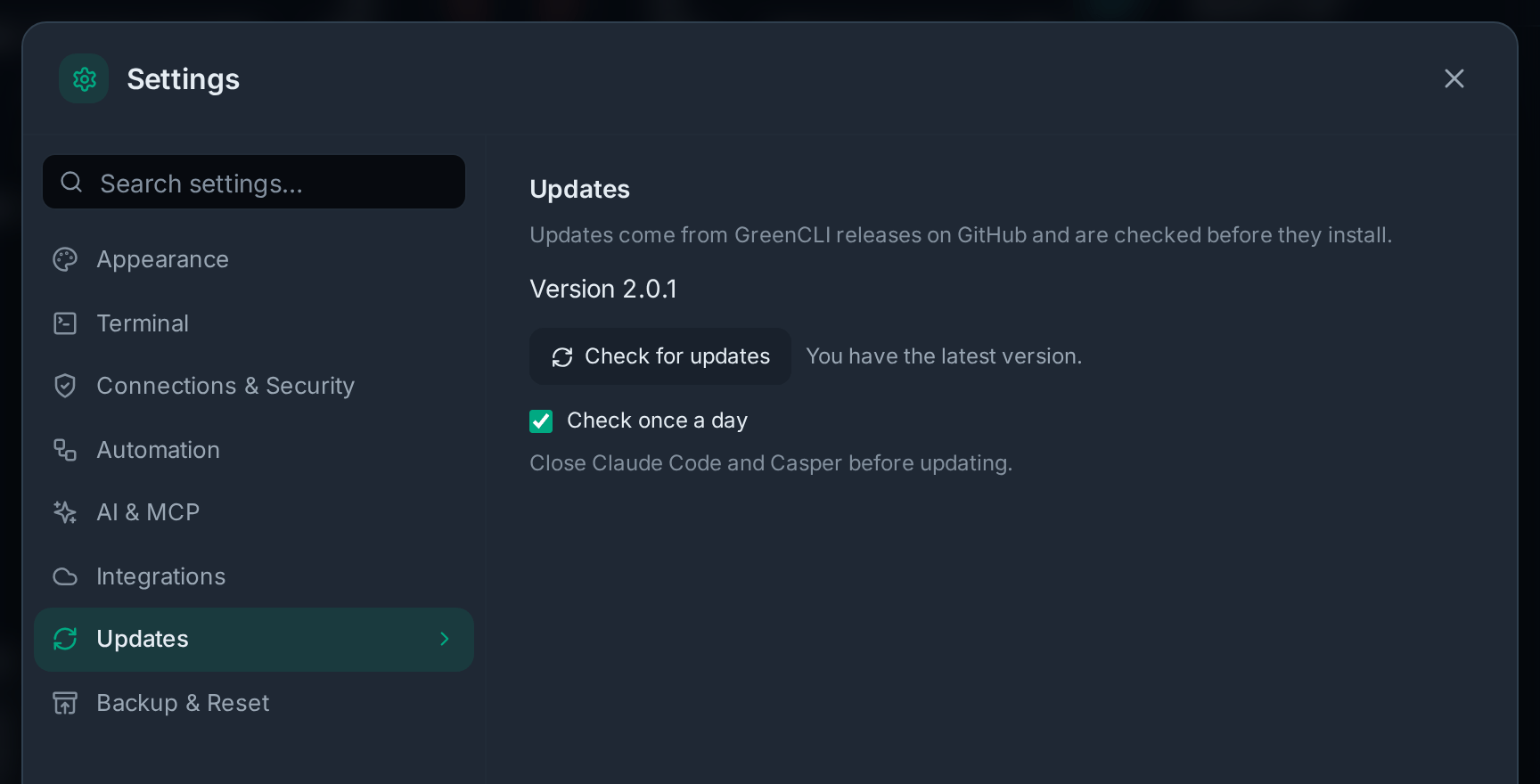
- Settings → Updates shows the version, Check for updates and Check once a day (on by default). The daily check runs quietly at start, then again once a day while GreenCLI stays open.
- A check downloads a newer version and checks its signature, but never installs it. When it is ready you see "GreenCLI X is ready." with Restart to update.
- Restart to update asks first ("Restart now?"), says how many open sessions will close, and warns when the Config Editor has unsaved edits, an AI answer is still running, or a password change is waiting for the vault to unlock (it would be lost). It saves the vault before the app closes. It won't start while a Change Job, bulk run, Config Editor send or SFTP upload or download is going.
- Other messages: "You have the latest version.", "Couldn't check for updates. Check your internet connection.", and in a build with no updates: a dev build shows "Updates are off in development builds.", and a Linux build (or any system with no release build) shows "There is no release build for this system, so updates are off. Build new versions from source."
- Mac: run GreenCLI from Applications. From the disk image (or straight from Downloads) it says "Move GreenCLI to Applications first." and offers no update. After an update, restart Claude Code and Casper so they use the new greencli-mcp: one they started before keeps running the old one.
- Windows: close Claude Code and Casper before you update, because a greencli-mcp they run can block the installer. GreenCLI's MCP servers stop just before the installer starts, and come back only if the installer can't start. Once it starts, GreenCLI has closed: if the installer then shows "Error opening file for writing" (a greencli-mcp still in use), close Claude Code and Casper and click Retry. After Abort, open GreenCLI again (it reconnects its turned-on MCP servers), or run the installer from the Releases page.
- 1.9 and older have no updater: install 2.0 by hand once.
Releasing#
- Bump the version and merge.
- Push a tag that matches the version exactly:
v2.0.1for 2.0.1. - Wait for the Release workflow. It runs the CI checks first, then release (it finds or
makes the draft), then three build jobs (macOS Apple Silicon, macOS Intel, Windows), then
update-files (it writes
latest.jsonand checks the draft). All of them must be green. - Open the draft release on GitHub and publish it as the latest release. The app only sees published releases.
There is nothing to set up for update signing: no key to make, keep or paste, and no secrets.
- Build only: Actions → Release → Run workflow, and untick publish. Nothing goes to
a release; the installers are kept as workflow artifacts named
greencli-<target>, and update-files doesn't run. Use this to test a build. On a Mac, open the.dmgin the artifact and drag GreenCLI to Applications. (The artifact has no looseGreenCLI.app: workflow artifacts lose the execute bit, so it would not start.) - A push to a
release/**branch always publishes (to a draft named after the app's version), so push one only after the version bump. - A later
release/**push or manual run for the same version (say, after you push a fix to that branch) uploads into the same draft and moves its future tag to the commit it built, so the tag that publishing makes matches the installers. This works only while the tag doesn't exist yet: GitHub keeps a tag that is already there. So whenv<version>is already on another commit, such a run stops at release ("The tag ... already exists") and builds nothing. - If the run for a tag fails: when nothing in the code needs to change (a step that failed by
chance), re-run the failed jobs, or run the workflow with the tag picked under Use workflow
from. When the code needs a fix, merge it and then either bump the version and tag again, or
delete the draft and the tag (
git push origin :refs/tags/v2.0.1) and push the tag again on the fixed commit. Arelease/**push or a manual run from a branch can't fix it: the tag stays on the old commit. - One Release run at a time. A run that starts while another is going waits for it (Actions shows it as waiting), so two runs never upload into the same draft at once. GitHub keeps only the newest waiting run: push again while one waits and the older waiting run is cancelled. Build-only runs don't wait and can't cancel a waiting run: they upload nothing. Publishing a draft (its tag starts a run) or starting a run for another version while a run waits still cancels the waiting one. Publish only when the run for the newest commit on the release branch (or for the tag) has a green update-files: a cancelled run there means the draft is older.
- Publishing a draft made by a
release/**push or a manual run creates its tag, and that tag starts the Release workflow again. That run sees the release is already published and builds nothing (its gate job says so). If you ever see a secondv<version>draft after publishing, delete it. - Re-running one build job makes a new key and replaces that build's files and key in the
draft. Make sure update-files runs again after it (re-run it by hand if GitHub didn't) and is
green before you publish: it writes
latest.jsonagain from the files the draft has then. Don't publish while update-files is red or hasn't run. - Re-running works on a draft only. Once the release is published, a re-run of a build job or of update-files stops at once with "already published" and changes nothing, so the live release keeps its files and key. A build job that was still running when you published stops the same way when it is about to upload. To ship a fix or a new build (for example a signed Mac app after you add the Apple secrets), release a new version.
- The three build jobs upload into the draft the release job found or made, and only
update-files writes
latest.json, so builds that finish at the same moment can't make a second draft or lose a platform. If update-files says the release needs one signed update file for a platform, or has noupdate-key-<platform>.pub, that platform's files are missing from the draft: re-run only the build job for that platform. - If release says there are two drafts for the tag, delete the extra one (the one with fewer files), then run the workflow again.
- If the tag doesn't match the version (for example
v2.0for 2.0.0), update-files fails. Delete the draft and the tag, then tag again with the right name.
How update signing works#
Each build job makes a new key pair just for that build. It signs that build's update files and
adds the public key to the draft as update-key-<os>-<arch>.pub. The private key is deleted right
after the build and is never saved anywhere.
When GreenCLI checks for updates, it reads the version of the latest release. Then it takes the
key and the update list (latest.json) from that same release, and checks the download against
the key before it shows Restart to update. Every request goes over HTTPS to GitHub only, and
the update file must be a file of a GreenCLI release.
The signature protects against:
- a broken or cut-short download;
- a swapped file, or a file from anywhere other than that GreenCLI release;
- a mix-up between builds (one system's file with another system's key).
It does not protect against someone who can publish releases on the GitHub account. They could publish their own files and key. This is the same trust as downloading GreenCLI from the Releases page. Keep two-factor login on for that account.
Apple signing (optional)#
The release workflow (.github/workflows/release.yml) can sign the Mac app with your Apple
Developer ID and have Apple notarize it. Then Mac users get no "unidentified developer" warning,
and they don't need right-click → Open or System Settings → Privacy & Security to start
GreenCLI the first time. A signed app also keeps its Keychain access after an update.
First make these at Apple (once):
- Certificate (developer.apple.com → Certificates, IDs & Profiles; only the Account
Holder can make one). In Keychain Access → Certificate Assistant → Request a Certificate From
a Certificate Authority, save a certificate request to disk. Use it to make a Developer ID
Application certificate, download it, and open it to add it to your login keychain. In
Keychain Access → My Certificates, export that one certificate with its private key as a
.p12file, with a password. If you already setAPPLE_CERTIFICATEfor an older release with a Developer ID Application.p12, you can keep it. - API key (appstoreconnect.apple.com → Users and Access → Integrations → App Store Connect API → Team Keys; request access first if it asks). Make a key with Developer access or higher. An Individual key does not work for notarizing.
- Note the Issuer ID (shown above the key list) and the Key ID (10 characters).
- Download
AuthKey_<Key ID>.p8. Apple lets you download it only once, so keep it safe, or revoke the key and make a new one.
Then add these five repository secrets (GitHub → Settings → Secrets and variables → Actions):
| Secret | What goes in it |
|---|---|
APPLE_CERTIFICATE | Your Developer ID Application certificate with its private key, exported as a .p12 file, in base64 (on a Mac: base64 -i cert.p12 | pbcopy). Put only this one certificate in the .p12. |
APPLE_CERTIFICATE_PASSWORD | The password you set when you exported the .p12. |
APPLE_API_ISSUER | The Issuer ID of your App Store Connect API team key. |
APPLE_API_KEY | The Key ID of that API key. |
APPLE_API_KEY_P8 | The whole text of the AuthKey_<Key ID>.p8 file you downloaded for that key, from -----BEGIN PRIVATE KEY----- to -----END PRIVATE KEY-----. |
- All five set: the app,
greencli-mcpinside it, and the.dmgare signed and notarized, and Apple's ticket is stapled to the app and the.dmg. The update file is made from the signed app. If Apple's ticket comes late, the app may be left without its stapled ticket: the run shows a warning and still passes, because the app is notarized and the.dmg's ticket covers it. - None set: releases still build, unsigned. The run shows a notice.
- Some set: releases still build, and the run shows a warning that names the missing secrets. With only the certificate and its password, the app is signed but not notarized; with any other mix, it is not signed.
No APPLE_SIGNING_IDENTITY secret is needed: the workflow reads the signing name from the
certificate. The secrets never show in the build log.
If a Mac build stops with "Apple did not accept the API key", check the three APPLE_API_*
secrets, and that the key is a Team key with Developer access or higher (step 2 above).
3. Where your data lives#
All state is stored outside the webview, in the OS app-data directory for bundle
id com.choatelabs.greencli:
| OS | Path |
|---|---|
| macOS | ~/Library/Application Support/com.choatelabs.greencli/ |
| Linux | $XDG_DATA_HOME/com.choatelabs.greencli/ when XDG_DATA_HOME is set, else ~/.local/share/com.choatelabs.greencli/ |
| Windows | %APPDATA%\com.choatelabs.greencli\ |
| File | Contents | Notes |
|---|---|---|
sessions.json | Saved sessions + folders | No secrets — passwords/keys are never written here |
vault.enc | Encrypted credential vault | AES-256-GCM; written 0600, atomic |
secret_store.json | Says AI keys and MCP logins are in the system password store | No secrets. Also lists a move from 1.9 that isn't done yet |
secret_store.stamp | A random value replaced at each key change | No secrets. Tells a second running copy of GreenCLI to read the keys again |
ai_keys.json | AI provider API keys | Only when no system password store is found, or an old 1.9 file that couldn't be moved; 0600 |
mcp_servers.json | MCP server definitions | — |
mcp_creds.json | MCP server logins | Same as ai_keys.json; 0600 |
mcp_creds/ | The login file of each running stdio MCP server | Deleted when the server stops; left-overs deleted at start; 0600 |
known_hosts.json | TOFU SSH host-key fingerprints | atomic writes |
intents.json | Network-intent definitions + last result | atomic; corrupt file is preserved, never silently wiped |
config_archive/ | Captured running-configs, plus a copy of each with secrets hidden (<time>.hidden.json) for greencli-mcp | Owner-only |
logs/ | Session logs, unless you pick another log folder | — |
Secrets are deliberately kept out of browser
localStorage. Aruba Central / Mist credentials entered in Settings are stored encrypted in the credential vault (vault.enc) when it is unlocked, so they survive a restart; while the vault is locked they live in memory for the session only (same model as saved SSH passwords). Account metadata (name / URL / client-id) persists either way.
AI keys and MCP logins: the system password store#
GreenCLI 2.0 keeps AI keys and MCP logins in the system password store, not in files:
| OS | Store |
|---|---|
| macOS | Keychain |
| Windows | Credential Manager |
| Linux | The Secret Service (GNOME Keyring, KWallet …) |
- Each one is saved under the service name
com.choatelabs.greencli, with the accountai-key:<provider>ormcp-creds:<server>. On a Mac you can see them in Keychain Access. Windows ignores case in Credential Manager item names, so there a capital letter or any character other thana-z,0-9and-_.:is written as%and two hex digits in the item name (mcp-creds:%43entral.com.choatelabs.greenclifor the server "Central"). The user name field shows the account as it is. GreenCLI 2.0.0 kept the capitals in the item name (mcp-creds:Central.com.choatelabs.greencli); a login it saved that way still works and moves to the new name the first time GreenCLI reads, saves or removes it. Credential Manager holds at most 2560 bytes per item, so a longer login is split into parts (part1a:…,part2a:…; the next save usespart1b:…,part2b:…, so a save that stops partway leaves the old login whole). - The AI key field and the MCP server form say where keys are kept ("Saved in macOS Keychain.").
- The move from 1.9: at first start, 2.0 moves the keys in
ai_keys.jsonandmcp_creds.jsoninto the store. Each one is saved, read back and compared, and only when all of them check out is the file deleted. - Left-over files: if an old file can't be read as keys, it stays where it is and Settings
shows its path ("An old key file couldn't be read and may still hold keys: …"). Delete it after
you enter your keys again. If some keys didn't move, the file stays in the data folder and
Settings says "Some keys from 1.9 were not moved yet. GreenCLI will try again next start." Until
then they keep working from the old file, as long as GreenCLI can read it. Keys you change or
remove in 2.0 in the meantime stay as you set them. GreenCLI notes each such change in
secret_store.json; if it can't write that file (for example, the disk is full), it doesn't make the change and says "Nothing was changed. …". If you go back to 1.9 in the meantime, keys you change or remove there are changed or removed in 2.0 too at its next start. - No password store (some Linux setups, for example with no keyring running, or a store that
doesn't answer within 3 seconds): keys stay in
ai_keys.jsonandmcp_creds.json(owner-only, the 1.9 format), and Settings says "Saved in a private file on this computer. The system password store couldn't be used when GreenCLI started; it tries again at each start." - Store can't be reached once keys are in it: Settings says "Can't reach the system password store. Keys saved on this computer are still there. Try again after you log in to the desktop." GreenCLI never goes back to files then.
- Going back to 1.9 loses the keys (1.9 can't read the store), and copying only the data
folder to another computer doesn't copy them. Before you first run 2.0, copy
ai_keys.jsonandmcp_creds.jsonto a private place, or be ready to enter the keys again. If the new computer has no system password store (some Linux setups), deletesecret_store.jsonfrom the copy while GreenCLI is closed there. Otherwise it waits for a store that isn't there. Then start GreenCLI and enter your keys again. - Back to 2.0 after 1.9: once the first move has finished, starting 2.0 again moves 1.9's
ai_keys.jsonandmcp_creds.jsonin again. Each key or login in them (typed in 1.9, or copied back from a backup) replaces the one in the password store, and the files are deleted. The others stay as they were. (While a move is still pending, see Left-over files above.) - Back to 2.0.0 after a later version: 2.0.0 can't read some MCP logins a later version saved
or moved. A login a later version saved that is longer than 2560 bytes on Windows (32 KiB on
macOS and Linux) reaches the server in 2.0.0 as a short line like
GCS1 2 a 3001. On Windows, a login for a server whose name has a capital letter or a character other thana-z,0-9and-_.:(for example "Central") moves to its new item name once a later version uses it, and 2.0.0 then shows no saved login. Enter those logins again in 2.0.0. When you update again, enter the Windows ones once more: the later version uses the copy it moved before the one typed in 2.0.0. - MCP login files: when a stdio server connects, its login is written to a new owner-only file
in
mcp_creds/run-<id>/, and the server's credentials env var points at it. The file is deleted when the server stops, exits by itself or fails to connect. Files a crash left behind are deleted at the next start. A second running copy of GreenCLI leaves the first one's files alone. - Developers: on a Mac, an unsigned or
tauri-devbuild may show a Keychain prompt. If nobody answers it within 3 seconds at a first start, that start keeps keys in files and the next start asks again.
4. Connecting to devices#
Open Quick Connect (Cmd+T on a Mac, Ctrl+Shift+T on Windows) or double-click a saved host
in the sidebar.
- Protocols: SSH, Telnet, Serial, and Local (a local shell / CLI).
- Local presets: Default Shell, Claude CLI, Kimi CLI, Copilot CLI and Casper. Set Start folder to your project so Casper works on those files. The AI assistant never types into local tabs, Casper's included.
- SSH auth: password, private key (Browse… to load a key file), or ssh-agent
(uses
SSH_AUTH_SOCK/ the OS agent). Ifpasswordauth is refused, it falls back to keyboard-interactive (TACACS+/RADIUS) — the password answers only the first prompt, so a second-factor/OTP prompt is left for you. - Jump host / ProxyJump: set a bastion host/port/user; it authenticates with the jump password if given, else your key, else the agent.
- Serial: port, baud, and data/parity/stop bits.
- Startup commands: per-host commands run automatically once the shell is ready
(e.g.
terminal length 0,no page). - Save to sidebar persists the session (including jump-host and local
command/args/cwd) to
sessions.json— never the password.
Settings layout: Settings (
Cmd+,/Ctrl+,) is organized into left-nav groups — Appearance, Terminal, Connections & Security, Automation, AI & MCP, Integrations, Updates, Backup & Reset — so paths below read "Settings → group → section".
Credential vault#
Unlock the vault from the command palette (Cmd+K on a Mac, Ctrl+Shift+P on Windows →
"Unlock credential vault") with a
master password (Argon2id-derived key, AES-256-GCM) — the app also prompts the first
time you save a credential on connect.
Saved SSH passwords are stored encrypted and offered automatically on the next connect.
A corrupt/incompatible vault.enc is never auto-overwritten — it errors and is
preserved so nothing is silently lost.
5. AI assistant (provider-neutral)#
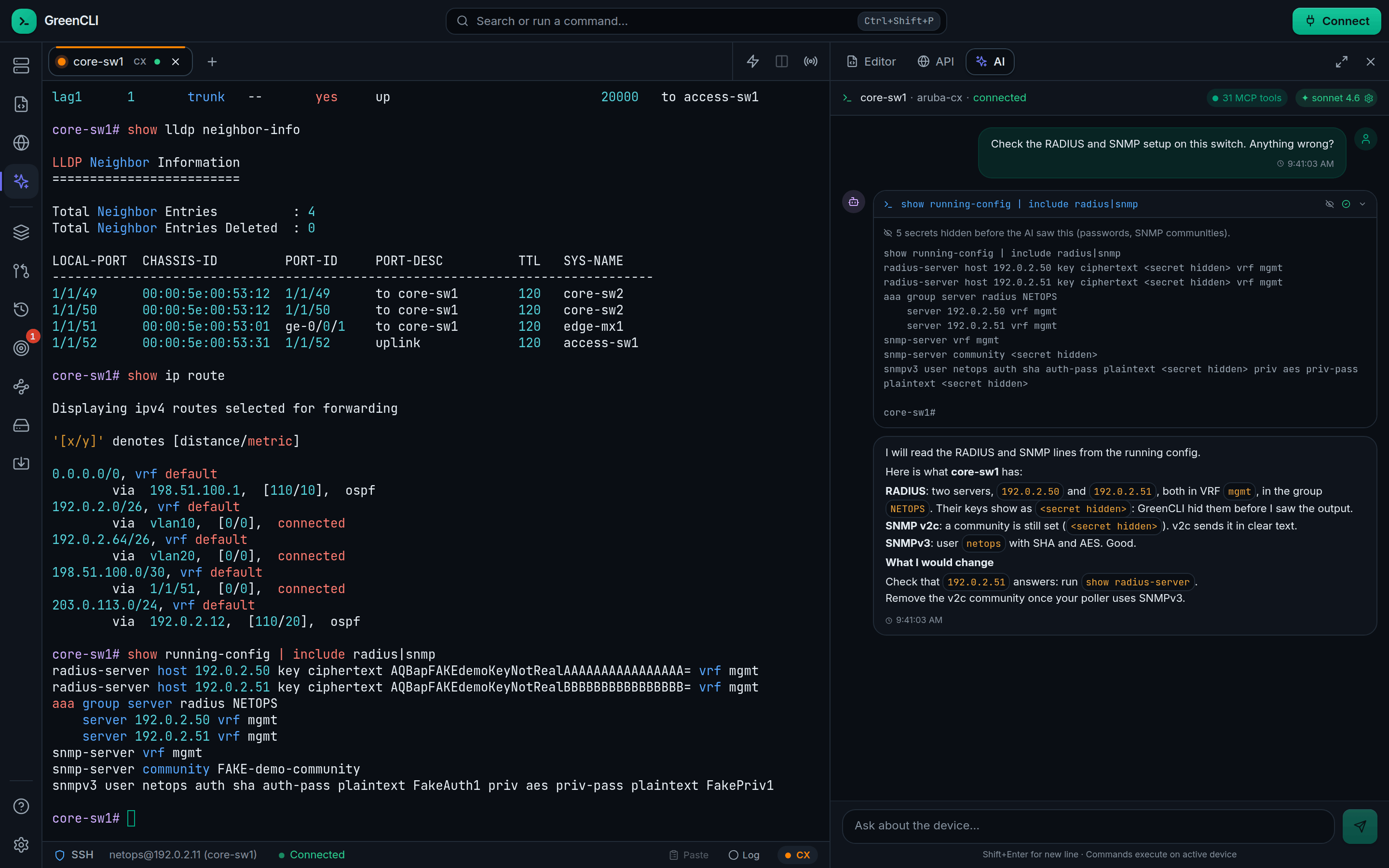
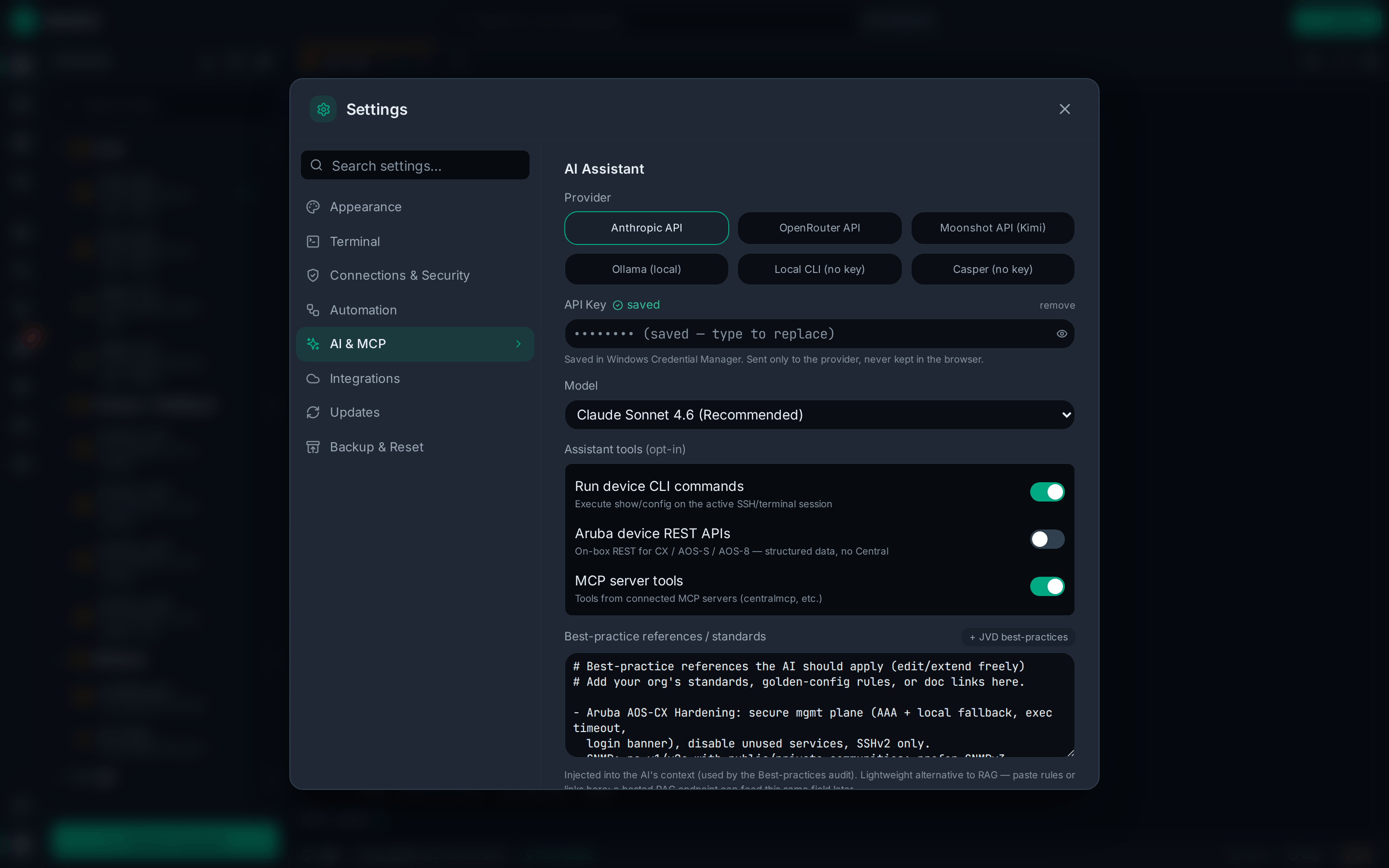
Open the AI panel with AI Assistant (the sparkle icon) in the bar on the left. Settings → AI & MCP → AI Assistant:
- Provider — pick one:
- Anthropic (Claude) — needs an API key.
- OpenRouter — needs an API key (any model id, e.g.
anthropic/claude-3.5-sonnet). - Moonshot / Kimi — needs an API key.
- Ollama — local, no key; set the URL (default
http://localhost:11434) and a model. Start it withollama serve. - Local CLI — shell out to an installed agent CLI (e.g.
claude -p,kimi). - Casper (no key) — answer through Casper, the AI agent installed on your computer, with its own sign-in (see Casper as the AI below). Needs Casper 0.2.21 or newer.
- API key — kept in the system password store (§3), never in the webview.
- Model — per provider.
- Assistant tools (opt-in, all off by default except terminal):
- Run device CLI commands — execute show/config on the active session (also covers the network-intent checks, see §9).
- Aruba device REST APIs — on-box REST for CX / AOS-S / AOS-8 (no Central).
- MCP server tools — tools from connected MCP servers (see §6).
- References / standards — free-text grounding the AI applies (golden-config rules, doc links, your org standards).
Responses stream token-by-token for the API providers; Stop actually aborts the backend request (the provider stops generating), not just the UI. Local CLI and Casper answer all at once, and Stop ends the CLI.
Casper as the AI#
Settings → AI & MCP → AI Assistant → provider Casper (no key).
- Command:
casper, or its full path. You can add--model,--effort,--max-turnsor--verify. GreenCLI adds--jsonand sends your question on its own. Flags that turn Casper's safety off (like--no-sandbox) are refused. - Working folder: each question gets a fresh, empty folder that GreenCLI deletes afterwards.
Choose… picks a project folder instead. Your home folder, folders that contain it, and
folders whose files other programs run (PATH folders,
~/.config,~/Library/LaunchAgents…) can't be used. In a picked folder Casper also follows instruction files it finds there (.casper/rules.md,AGENTS.md,CLAUDE.md); Check Casper lists them. - Check Casper says whether Casper is found, its version, and where it will work.
- GreenCLI never turns Casper's sandbox off, and won't start Casper if your Casper settings do. It also won't start Casper while a port forward is open or an MCP server on this computer is saved or connected, because Casper's commands can reach local ports. While Casper answers, no new port forward opens and no web MCP server connects.
- Like Local CLI, Casper answers from your question only: it can't use GreenCLI's device tools, your SSH sessions or MCP servers. Secrets in your question are hidden first.
- Know this: Casper's own file tools can read files outside its folder, including GreenCLI's
session logs, archived configs and the login file of a running MCP server, plus
ai_keys.jsonandmcp_creds.jsonwhen no system password store is found (or an old 1.9 file is left in the data folder; Settings says so). AI keys and MCP logins in the system password store are not files. Only ask Casper about text you trust (a prompt hidden in a pasted log could ask it to read those files).
Read-only Auditor (enforced)#
The built-in Read-only Auditor agent is enforced, not just a prompt. With it attached:
- Terminal commands must be a plain read: a read command first (
show,display,pingwith a count,cat/head/tailof a file …), only simple characters, and only filter pipes (| include,| match,| last…). Anything else is refused with no dialog. Theshshort form isn't accepted: typeshow. - The AI only sees MCP tools the server marks as read-only (plus the Junos show tools), and GreenCLI refuses any REST change or MCP call that could change something.
Secrets hidden from the AI#
Every tool result goes through a secret filter before the AI sees it: terminal output, device
REST, MCP results, intent summaries and error text. Passwords, hashes, RADIUS/TACACS keys, SNMP
communities and SNMPv3 pass phrases, Wi-Fi and VPN keys, and private keys show as
<secret hidden> (a whole line as <line hidden: secret>). The tool row in the chat shows an
eye-off icon with "N secrets hidden before the AI saw this". The AI still sees what kind of line
it is (password ciphertext <secret hidden>), so audits still work.
- The AI can't send a marker back: a command, REST body or MCP argument with
<secret hidden>in it is refused, because it would write the marker over the real secret. To change such a line, edit it yourself. - Known limits: it hides known formats (Aruba AOS-CX / AOS-S / AOS 8, Junos, Cisco, plus
KEY=VALUE,user:password@and common note styles). An unknown format can still get through. Text you type into the chat yourself is sent as you typed it. - Lines longer than 8 KB are hidden whole (device output never has lines that long).
- The filter needs regex lookbehind. On a system without it (an old Linux WebKitGTK), the AI gets "output not shown" instead of unchecked output.
- The rules are shared with Casper:
src/utils/secrets/holds copies of Casper'ssrc/secretsfiles. To update them after a Casper change, with Casper checked out next to this repo:CASPER_SYNC_WRITE=1 npx vitest run src/utils/secrets/casperSync.test.ts.
6. MCP servers (external tools for the AI)#
The app is an MCP client: it connects to external MCP servers and exposes their tools to the AI for every API provider (not Local CLI or Casper). Two transports:
- Stdio (default) — the app launches the server as a child process per connect, keyed off Command/Args/Env/Working dir.
- Streamable HTTP — point at a server that's already running (e.g.
centralmcp's
run_http_router.sh); one process can then serve multiple clients/machines instead of being spawned per launch.
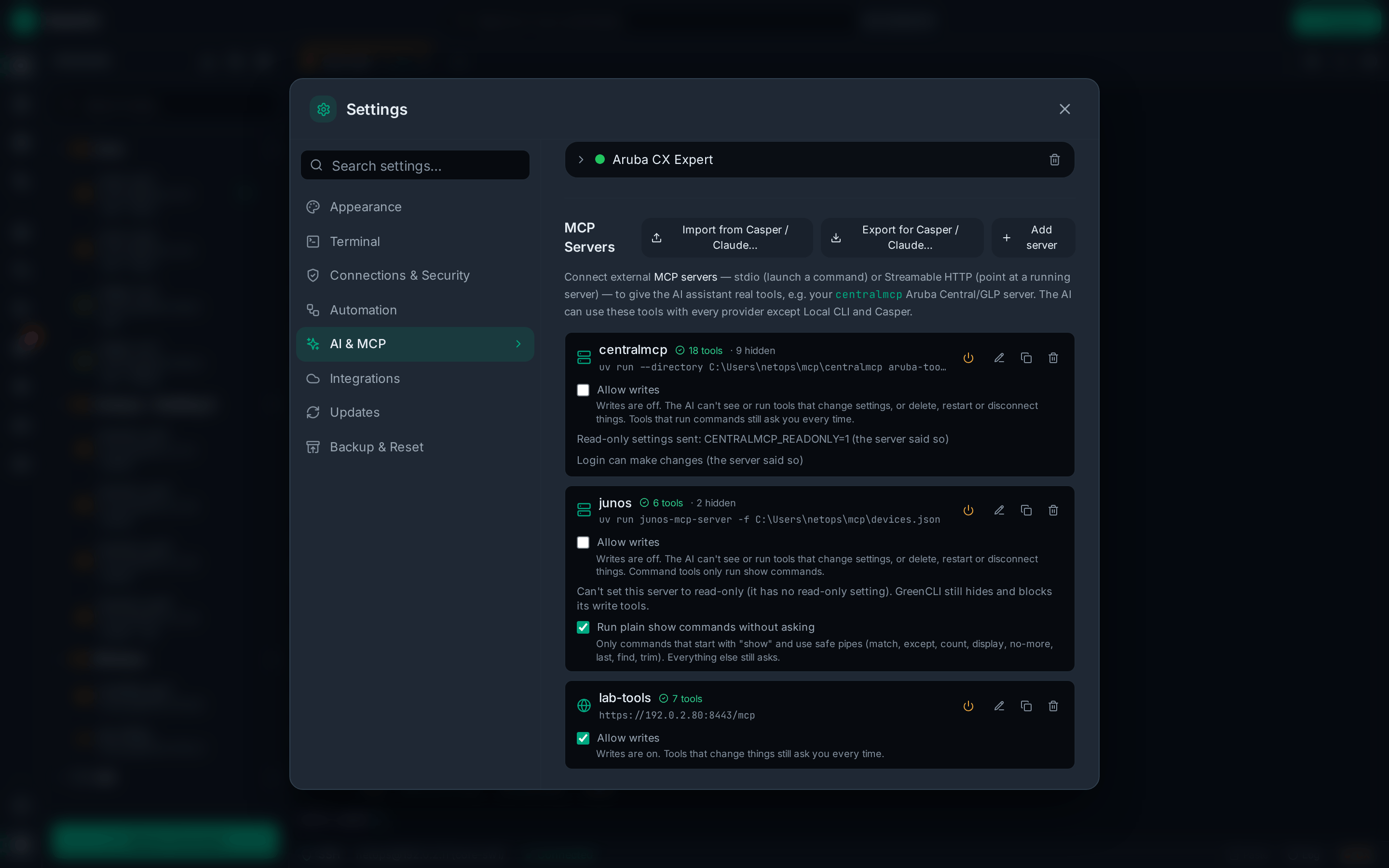
Settings → AI & MCP → MCP Servers (or the command palette: MCP Servers) → Add server. Click Paste config JSON instead
to auto-fill from a setup wizard / Claude-Desktop-style snippet — either a
bare {"command": "...", "args": [...]} / {"url": "..."} object, or the
same wrapped in {"mcpServers": {"name": {...}}}. Otherwise, fill in by hand:
| Field | Applies to | Example |
|---|---|---|
| Name | both | centralmcp |
| Command | stdio | python (or uv, node, …) |
| Args | stdio | one per line, e.g. -m, centralmcp |
| Env | stdio | KEY=VALUE per line |
| Working dir | stdio | optional |
| Server URL | http | http://127.0.0.1:8010/mcp |
| Credentials env var | stdio | env var name the server reads its creds path from (default CREDS_PATH) |
| Credentials content | stdio | pasted secret (e.g. a credentials.yaml) — kept in the system password store (§3); while the server runs it is written to a 0600 file that the env var above points at (meaningless for HTTP — the app doesn't launch that server) |
Click Connect; the tool count appears in the AI panel. Example target: the
author's centralmcp (Aruba
Central / GLP / monitoring / NAC / ops / RAG, hundreds of backend tools behind
a compact router — find_tool / invoke_read_tool / invoke_tool in its
default minimal mode). Tool names are namespaced mcp__<server>__<tool>.
Renaming a server moves it and its saved login (no orphaned duplicate); removing one
removes its saved login too. If the password store can't be reached, nothing is removed.
MCP safety: the approval box and Allow writes#
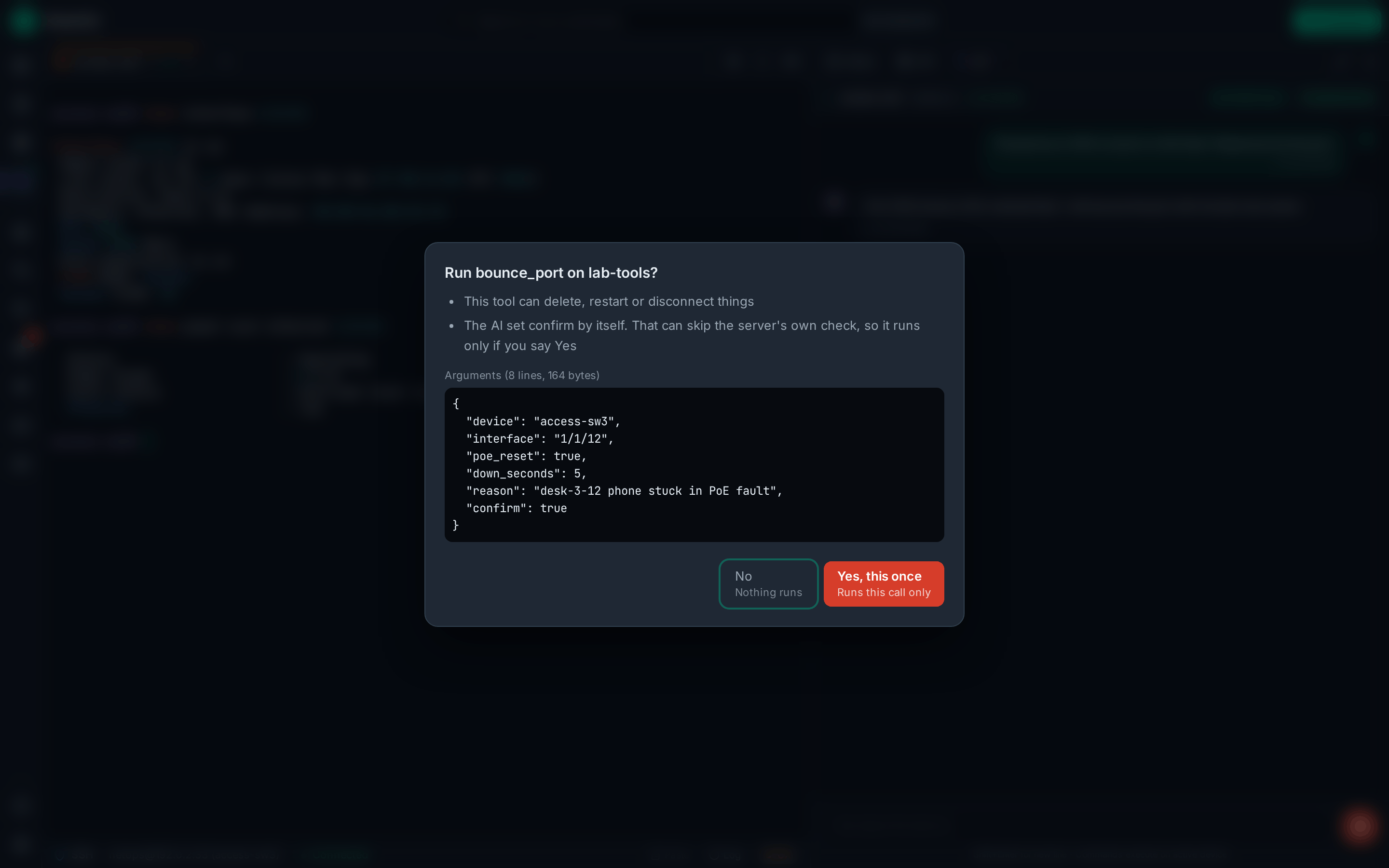
GreenCLI checks every MCP tool before the AI can run it (the same labels as Casper):
- A tool the server marks as read-only runs at once. Anything that might change something opens
a box: the tool and server, what it can do in plain words (change settings, run commands,
delete or restart things), the real tool when the call goes through a router tool such as
invoke_tool, and the full arguments. Choose No, Yes, this once, or (only for a tool whose name clearly just reads) Yes, until GreenCLI closes. - These always ask: router calls, calls where the AI set
confirmor turned offdry_runitself, calls GreenCLI can't fully read, and anything that can write, run commands or delete. If the tool changes or disconnects while the box is open, nothing runs. - Stop closes an open box as No and asks the server to cancel a running call.
- Allow writes (per server, off by default): with writes off, GreenCLI hides tools that change settings or delete things and blocks them, even through a router. For servers it recognises it also starts them with that product's own read-only settings (HPE networking, Central/centralmcp, Grafana, ClearPass); the row shows which. Turning writes on asks first and restarts the server. Servers saved before 1.9 start with writes off. Changing a server's command, args, folder or URL turns writes off again.
- If a server offers an
access_checktool, GreenCLI asks it what the login may do. A read-only login shows as Login: read-only (checked), and writes can't be turned on for it. - Junos: Run plain show commands without asking lets
show …with safe pipes run without a box. Everything else still asks. - Stdio servers now get only basic variables from your system (PATH, HOME, locale, temp folder, ssh-agent, proxy and certificate settings) plus their own Env entries. If a server needs a variable it used to get from your shell (an API key), add it in its Env box.
- The MCP server URL and Ollama URL fields warn about plain
http://to another computer.
Export for Casper / Claude Code#
Export for Casper / Claude… saves your servers as a .mcp.json that Claude Code and Casper
can both read. You choose where it goes; GreenCLI won't write over another app's own settings
files. No secret is written to the file: passwords, tokens, keys, header values, logins in
addresses and user:password values become ${NAME} variables, and after saving GreenCLI lists
each name and where it was used. Set them only in the terminal you start Claude Code or Casper
from (a private file you source is safest). Servers with writes off get their read-only
settings in the file, and the list says that GreenCLI's own writes switch and approval box don't
travel with it. The export also adds greencli-mcp (below) as greencli, so it works with no
saved servers too.
greencli-mcp: GreenCLI data for Casper or Claude Code#
GreenCLI ships a small read-only MCP server, greencli-mcp, next to the app:
- macOS:
/Applications/GreenCLI.app/Contents/MacOS/greencli-mcp - Windows:
greencli-mcp.exein the GreenCLI install folder
It lets Casper or Claude Code read your GreenCLI data. It can't change anything: it only reads
GreenCLI's data folder, and never writes a file, opens a network connection or starts a program
(a source-scan test checks this). The one exception is the live tools (below): they talk to the
GreenCLI app on this computer through its own channel in the data folder (mcp-live.sock; on
Windows, a named pipe whose name GreenCLI keeps in that file, with a secret only you can read; the
tools send nothing until the pipe shows that secret), and nothing else. Only programs running as
your own user get in.
Add it. Settings → AI & MCP → MCP Servers shows its full path, with Copy buttons for the path and for the command below (with your own folders filled in). Run the command in a terminal:
claude mcp add --scope user greencli -- "/Applications/GreenCLI.app/Contents/MacOS/greencli-mcp" \
  --data-dir "$HOME/Library/Application Support/com.choatelabs.greencli"
--scope user makes it available in every folder; without it Claude Code only adds it for the
folder you run the command in. --data-dir is GreenCLI's data folder (§3). Without it,
greencli-mcp works the folder out from its own environment, which can differ from the app's: on
Linux, Casper starts servers without XDG_DATA_HOME. If the folder isn't there, its tools say so
("GreenCLI's data folder … wasn't found") instead of showing no devices.
Or use Export for Casper / Claude…: it adds it as greencli (renamed, with a note, if you
already have a server by that name). On a Mac, move GreenCLI to Applications first, or the path
changes every time it starts; until then MCP Servers says so and the export leaves it out.
What it shows (seven read tools):
| Tool | What it gives |
|---|---|
access_check | That this server is read-only |
list_devices | Your saved devices: name, folder, protocol, host, port, device type, tags. No passwords, user names, notes or startup commands |
list_archive_devices | Every name the config archive has history under, and whether a saved device still has that name |
list_config_history | A device's saved config snapshots, newest first, and whether each has a hidden copy |
get_config | One saved config, with secrets hidden |
get_config_diff | What changed between two saved configs, with secrets hidden |
list_intents | Your network intents, with their last result and each device's status |
Live show commands (macOS, Linux and Windows):
| Tool | What it gives |
|---|---|
list_connected_devices | The device tabs connected in GreenCLI now: tab, name and type |
device_show | The output of one show line on one of those tabs, with secrets hidden (at most 16 KB) |
GreenCLI must be open with the device connected. It asks you first, in a box that shows the exact
line it will type (Junos gets | no-more) and has three buttons: No, Yes, this once, and
Yes, show commands on <device> until GreenCLI closes (it stops asking for that device until
GreenCLI closes). Casper asks first too (it marks device_show as diagnostic), so you answer two
boxes. Only plain show lines with filters after | (include, exclude, begin, section, match,
count …; on Junos display set, but not trim, xml or json) run: never config mode, never on
Linux or Windows host tabs, and never while something is half-typed in the tab. The text of
include, exclude, begin, section, match, except or find may be a pattern with ^ $ * . ( ) [ ] +;
a | always starts a new filter, so exclude (a|b) is refused. Never ? (on AOS-CX and Junos it
shows help at once and leaves the line half-typed), quotes, a backtick, a backslash or ; & < >.
Output over 16 KB is cut, keeping the start. Secrets are hidden, but a filter still sees them:
whether a line comes back can give a secret away one guess at a time, so pick the device button
only for a program you trust. GreenCLI closes the box as a No after 40 seconds (nothing runs), so
a Yes always has time to run before the 60-second wait ends. One switch in MCP Servers turns
this off; turning it off also forgets every device Yes and refuses anything already asked.
Hidden copies. When a config is captured, GreenCLI also saves a copy with secrets hidden (the same filter the AI uses). greencli-mcp reads configs only from these copies. A snapshot without one, or with one from an older filter, is refused ("No hidden copy for this snapshot …" or "… is out of date …"), never served raw. A copy from a newer GreenCLI is refused too ("… made by a newer GreenCLI than this greencli-mcp …"): GreenCLI was updated while Claude Code or Casper kept the old greencli-mcp running, so restart them. Configs captured before 2.0 have no hidden copy: open the Config Archive panel (activity bar or command palette) and click Make hidden copies. MCP Servers and the Config Archive panel show how many snapshots still need one. After a secret filter change, GreenCLI makes the old copies again at start.
- A diff can't show a changed password or key: both sides show it hidden.
- Config history stays under the name a device had when it was captured. After you rename or
delete a saved device, its older history is listed by
list_archive_devices(withsavedDevice: false), notlist_devices. So is a Quick Connect that was never saved (under its host). - Two snapshots that differ in more than 20,000 places are refused as a diff; use
get_configon each.
7. Aruba Central#
Settings → Integrations → Aruba Central:
- Base URL + Client ID/Secret (OAuth client-credentials), or
- Token auth — paste an access token for SSO accounts.
- Multi-account: save/load/delete named accounts (loading one and clicking Save updates it in place rather than duplicating).
Reach Central data via the API Explorer (target = Central) or via centralmcp
through the MCP client.
8. On-prem REST (no Central)#
For air-gapped / no-Central environments the AI can talk to device REST directly:
- AOS-CX / AOS-8 / AOS-S — auto-login with the active session's SSH credentials; enable Assistant tools → Aruba device REST APIs.
Explore the same endpoints interactively in the API Explorer (target = device or mist); pick a REST version in the Base URL and it's honoured at login.
Device REST security (TLS)#
Settings → Connections & Security → Device REST security → Verify device TLS certificates. On by default for new installs — untrusted certs are rejected across AOS-CX/AOS-8/AOS-S. Turn it off only for self-signed lab gear; the toggle warns that device admin and SSH credentials can be intercepted on untrusted networks while verification is disabled. The API Explorer's per-login Verify TLS checkbox defaults from this setting.
9. Network Intent (desired state / assurance)#
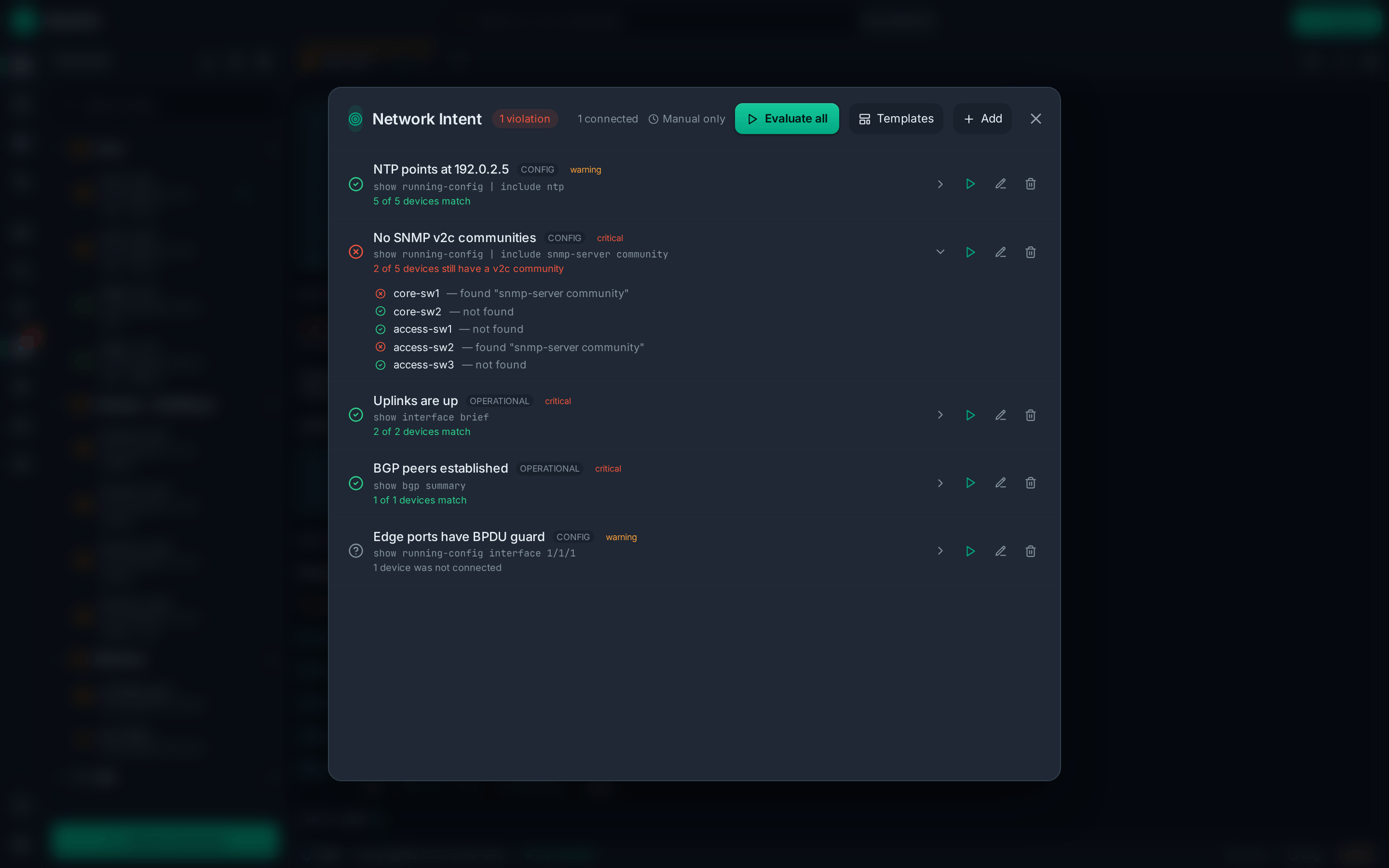
Network Intent in the bar on the left (the target icon). Declare what should be true and check live compliance:
- Add an intent: a name; kind (config or operational); a command to run;
a matcher (
contains/does NOT contain/matches regex/does NOT match) with an expected value; a severity; and a scope (all devices, or by tag / device type). - Evaluate all (or run one). Each intent's command runs against in-scope connected sessions; the output is matched and a per-device result is recorded.
- Results: ok / violation / unknown (empty output is unknown, never a
false pass), with a per-device breakdown. Results persist to
intents.json. - The AI tool
evaluate_network_intentsreturns a compliance summary — "check the network against our intent and explain the failures."
10. Other tools#
- Output triggers (Settings → Automation → Output triggers): toast + optional beep when a keyword/regex appears in any terminal. Regexes are validated when you add them and match across output chunks.
- Import hosts (sidebar download icon, command palette, or Settings → Connections & Security →
Host Import & SSH Host Keys): bring saved hosts in from a CSV file, SecureCRT (its
Sessionsfolder or an XML export), Aruba Central, Juniper Mist or~/.ssh/config. Every source shows a preview; hosts already saved (same host, port and user) are skipped and passwords are never imported. - Host keys (same Settings section): view / forget / re-trust known-host fingerprints.
- SSH Tunnels (bar on the left): local (
-L) and dynamic SOCKS5 (-D) forwards over any SSH session. Stopping a tunnel (or disconnecting the session) tears down its connections. - SFTP: browse/upload/download/mkdir/rename/delete on an SSH session. Uploads confirm before overwriting an existing remote file; dropped files confirm the target.
- Config Editor: Monaco (the VS Code editor) with per-vendor templates; Pull running-config and
Send to terminal. It prompts before discarding unsaved edits.
- Problems: risky lines ("reboots the switch"), blanks still to fill in (
${vlan_id},<replace-me>, a hidden-secret marker), terminal junk from a captured log, and a Junos edit with no commit are underlined, marked in the scrollbar, and counted in the toolbar (a clean device config shows ✓ No problems). Click the count (or press Ctrl+Shift+M, Cmd+Shift+M on a Mac) for the Problems panel under the editor: every problem with its line, filterable by kind; a click selects it. F8 / Shift+F8 steps through them. A line the switch rejected on Send shows in red with the switch's own words. Comment lines are never flagged. The Send dialog lists them too ("1 error, 2 warnings"). - Go to Symbol (Ctrl+Shift+O, Cmd+Shift+O on a Mac, or Outline): type to jump to an interface, LAG, VLAN, router or Junos section by name.
- Quick fixes (Ctrl+., Cmd+. on a Mac, or the light bulb on a problem): strip
terminal junk, comment out a risky or rejected line, add
commit confirmed 5to a Junos tab, or swap a plain-text password for a blank. - Hover cards: hover an Aruba CX or Junos line to see what it does in plain words and how the other vendor writes it (VLANs, access/trunk ports, LAGs, routes, NTP, SNMP, RADIUS, commit confirmed …).
- Code and data files (YAML, JSON, Python, shell,
.env, JS/TS, PowerShell, Terraform): a password, token or key written as a value gets a warning; variables and vault lookups don't. - Copy with secrets hidden (eye button next to Copy): copies the tab with passwords, keys
and SNMP communities swapped for
<secret hidden>, for a ticket or chat. A password written in plain text gets a blue tip pointing at it. - Status line under the editor: where Send goes (the terminal tab's name), that device's CLI, CONFIG MODE when its prompt shows it, and how long ago you pulled its running-config. A tab for another vendor (a Junos tab with an Aruba CX session) gets a red warning, and the Send dialog says it too.
- After a Send, a bar beside each line shows how far it got: green went out with no error, red was rejected, amber is a question or a line sent after the error, grey was never sent. Clear marks removes them.
- Aruba and Junos smarts: Ctrl+/ (Cmd+/ on a Mac) comments a line (
!for Aruba,#for Junos); a double-click picks1/1/5orge-0/0/0.100whole; the block you're in stays on top as you scroll. - Snippets: pick one from Snippets, or type its name at the start of a line
(
cx-access,junos-trunk, …). Tab moves to the next blank. - Diff: compare with a running-config you pulled (kept per device) or with a file. The right side is your tab: edit it there, or click the arrow beside a change to take the left side's lines.
- Folder view (the folder button at the left of the toolbar): open a folder and see its files as a tree, like VS Code. A click opens the file in a tab (or goes to its tab); type to find a file. Pictures, archives and files over 5 MB are greyed out. The last folder is remembered.
- Send selected lines: select lines, then the arrow next to Send (or right-click) → Send selected lines. Only those lines go out.
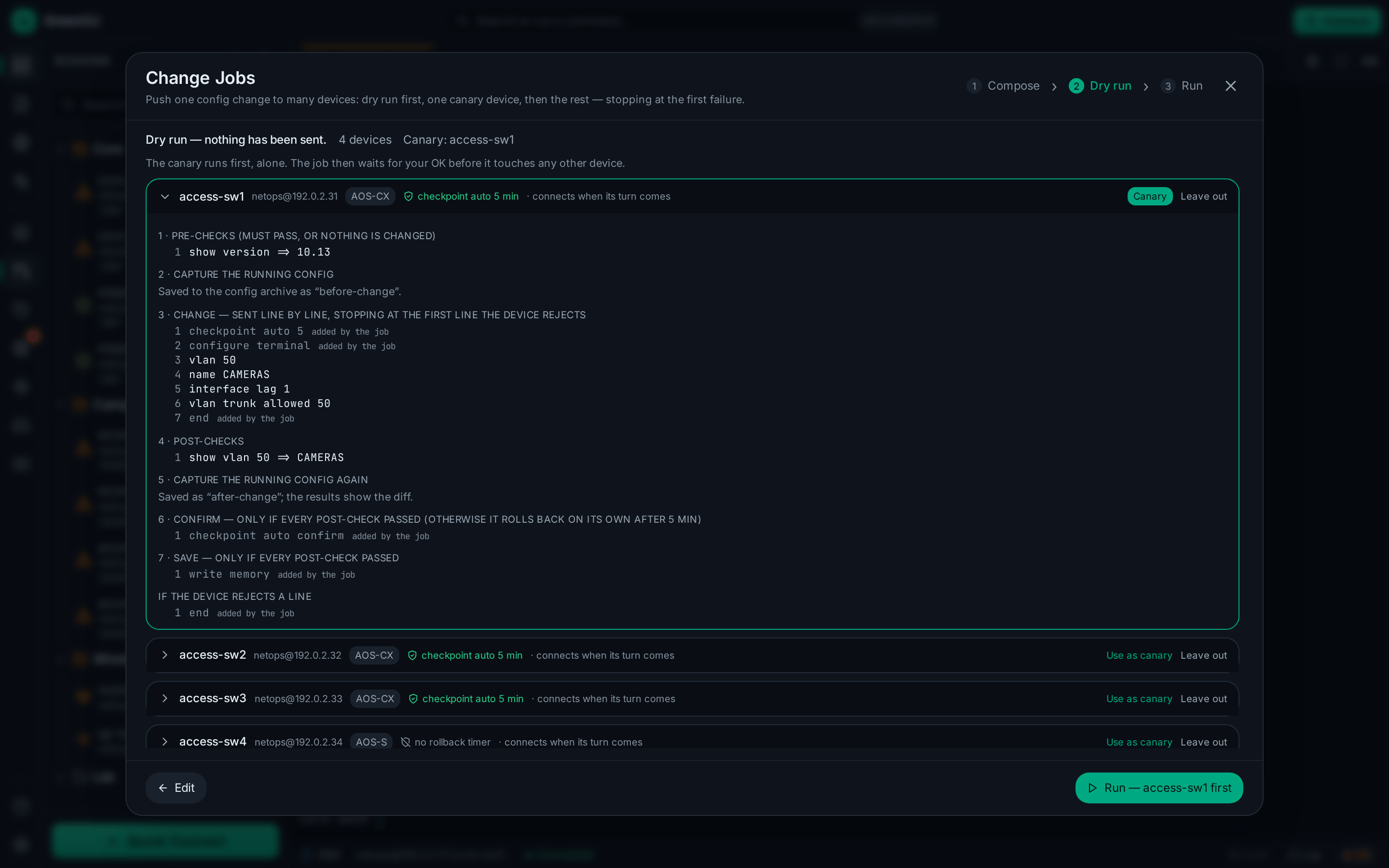
- Send safely as a Change Job: the arrow next to Send (or right-click) opens Change
Jobs with the tab (or the selected lines) and this device filled in. You get a dry run, then
the vendor's rollback timer (AOS-CX
checkpoint auto, Junoscommit confirmed): the switch rolls back unless you confirm. - Ask AI (toolbar, or right-click): explain the selected lines (or the tab), check them for mistakes, fix the problems found, convert Aruba CX ↔ Junos, or ask your own question. Secrets are hidden before anything goes to the AI.
- Review in Editor: a code block in the AI's answer opens as a diff against the lines you
asked about. Drop a change with the arrow beside it, edit the right side, then Apply (one
edit, Ctrl+Z undoes it) or Discard. Secrets the AI only saw as
<secret hidden>get their real value back. A converted config opens in a new tab. - From a session: select text, right-click → Open in Editor. It opens in a new tab in the device's language.
- Problems: risky lines ("reboots the switch"), blanks still to fill in (
- Bulk Runner: run one command across many sessions; export CSV (each row labelled with the command that produced it; a no-response is flagged, not shown as success).
11. Keyboard shortcuts#
| Action | Mac | Windows and Linux |
|---|---|---|
| Quick Connect | Cmd+T | Ctrl+Shift+T |
| Command palette | Cmd+K | Ctrl+Shift+P |
| Find in the terminal | Cmd+F | Ctrl+Shift+F |
| Find next / previous | Cmd+G / Cmd+Shift+G (or F3 / Shift+F3) | F3 / Shift+F3 |
| Close the active tab | Cmd+W | Ctrl+Shift+W |
| Next / previous tab | Ctrl+Tab / Ctrl+Shift+Tab (or Cmd+Shift+] / [) | Ctrl+Tab / Ctrl+Shift+Tab (or Ctrl+PgDn / PgUp) |
| Go to tab 1 to 9 | Cmd+1 … Cmd+9 | Alt+1 … Alt+9 |
| Settings | Cmd+, | Ctrl+, |
| Help | F1 | F1 |
| Show or hide the sidebar | Cmd+B | Ctrl+B |
| Config Editor / API Explorer / AI Assistant | Cmd+Shift+E / A / I | Ctrl+Shift+E / A / I |
| Zoom the font in / out / back | Cmd+= / Cmd+- / Cmd+0 | Ctrl+= / Ctrl+- / Ctrl+0 |
| Config Editor: Problems panel | Cmd+Shift+M | Ctrl+Shift+M |
| Config Editor: next / previous problem | F8 / Shift+F8 | F8 / Shift+F8 |
| Config Editor: quick fixes | Cmd+. | Ctrl+. |
| Config Editor: Go to Symbol | Cmd+Shift+O | Ctrl+Shift+O |
| Config Editor: comment a line | Cmd+/ | Ctrl+/ |
On Windows and Linux, plain Ctrl+T, Ctrl+F, Ctrl+K and Ctrl+W belong to the device shell
inside a session (transpose, forward, kill-line, delete-word), so GreenCLI uses the Ctrl+Shift
keys. The plain ones still work when the terminal doesn't have the focus. Ctrl+1–9 also stay
with the device, so tabs use Alt+1–9. The Help panel (F1) shows the keys for the computer
you are on.
12. Security notes#
- Credentials vault: AES-256-GCM + Argon2id;
vault.encis owner-only (0600) and written atomically. - AI keys and MCP logins are in the system password store (§3). With it, an MCP login is on disk
only while its server runs, in an owner-only file; without one (some Linux setups), logins stay in
the owner-only
mcp_creds.json(§3). - Updates come only from GreenCLI's GitHub releases over HTTPS, and each download is checked against its signature before it can install (§2, How update signing works).
- greencli-mcp is read-only and shows configs only with secrets hidden (§6).
- SSH uses TOFU host-key pinning (
known_hosts.json); a changed key is rejected. - No secrets in
localStorage; no telemetry. GreenCLI calls only the providers and devices you configure, plus GitHub for the update check on macOS and Windows (turn off Check once a day in Settings → Updates; see §2). - Device secrets in AI tool output are hidden before the AI sees them (§5).
- Device REST TLS verification defaults to on for new installs (§8); disabling it shows an interception warning in Settings.
13. Troubleshooting#
| Symptom | Fix |
|---|---|
| AI: "is Ollama running?" | ollama serve, and check the URL in Settings. |
| AI Local CLI not found | The app adds ~/.local/bin, ~/.cargo/bin, and Homebrew to PATH; ensure your CLI is installed there. |
| Device REST fails with a cert error | Verification is on by default. For self-signed lab gear, turn Verify device TLS off in Settings → Connections & Security → Device REST security (see the interception warning there). |
tauri-dev won't start (port in use) | Another Vite dev server is on :1420 — stop it or close the other instance. |
| Connected tab but no shell | Some restricted accounts/appliances refuse a PTY/shell — the app now surfaces this as a connect error rather than a frozen tab. |
| Vault won't unlock after a crash | A corrupt vault.enc is preserved, not overwritten. Back it up, then remove it to start fresh (saved secrets are lost only if the file was truly corrupted). |
| "Can't reach the system password store" | Keys saved on this computer are still there. Log in to the desktop (on Linux, make sure a keyring such as GNOME Keyring is running), then try again. On a Mac after an update, macOS may ask to let GreenCLI use its Keychain items: enter your login password and choose Always Allow (Allow alone asks again later). If you chose Deny, open Settings or the AI panel again and allow it. If you copied the data folder from another computer, the keys aren't on this one. Start a keyring, or quit GreenCLI and delete secret_store.json to keep keys in private files, then enter them again. |
| "An old key file couldn't be read …" | Enter your keys again, then delete the file Settings names. |
| "Nothing was changed. GreenCLI can't write secret_store.json …" | Some keys from 1.9 are still moving, and each change to them must be noted in that file. Free some disk space (or make the data folder writable), then save or remove the key again. |
| greencli-mcp: "No hidden copy for this snapshot" or "out of date" | Open the Config Archive panel (activity bar or command palette) and click Make hidden copies. |
| greencli-mcp: "made by a newer GreenCLI than this greencli-mcp" | GreenCLI was updated while Claude Code or Casper kept running the old greencli-mcp. Restart Claude Code or Casper. After you update GreenCLI, restart them so they use the new greencli-mcp. |
| Updates: "Move GreenCLI to Applications first." | Drag GreenCLI into Applications and open it from there. |
| Updates: "You have the latest version." but GitHub has a newer one | That release is still a draft, or wasn't set as the latest release: publish it as the latest release. If it is already published as the latest, its update files are missing or wrong (update-files wasn't green for it): release a new version and publish it only after update-files is green. |
14. Screenshots#
The pictures in docs/screenshots/ are taken by one command, with made-up demo
data (no real devices, addresses or keys):
npx playwright install chromium   # once
npm run build
npm run screenshots
It opens the built app in Chromium with a fake backend, clicks to each screen and
saves the PNGs, plus a README that says what each one shows.
npm run screenshots -- --only 03 takes one picture; --out <folder> saves them
somewhere else. The demo hosts, output and AI answers are in scripts/screenshots/.
The website#
The site at https://choaterboater.github.io/GreenCli/ is made from this repo by
scripts/build-site.mjs: the guide from this file, the help topics from
src/data/helpContent.ts, What's new from CHANGELOG.md, and these photos. Its download
buttons link to the files of the latest published release. Nothing is copied by hand.
npm run site            # build it into site-dist/
npm run site:preview    # build it, then open http://127.0.0.1:4173/
The Pages workflow (.github/workflows/pages.yml) builds it with fresh photos and
publishes it when a release is published, when these files change on main, and when you
run it by hand (Actions → Pages → Run workflow). A published release starts a new
run on main, so the site gets the new download links. Set it up once on GitHub:
- Settings → Pages → Source: GitHub Actions.
- Actions → Pages → Run workflow, once, so the site goes up now and not at the next release.
--shots <folder> builds with other photos, and SITE_RELEASE_JSON (a file, or the JSON
the GitHub API gives for a release) stands in for the latest release when GitHub can't be
reached.
Gallery#
| Main window | Config Editor |
|---|---|
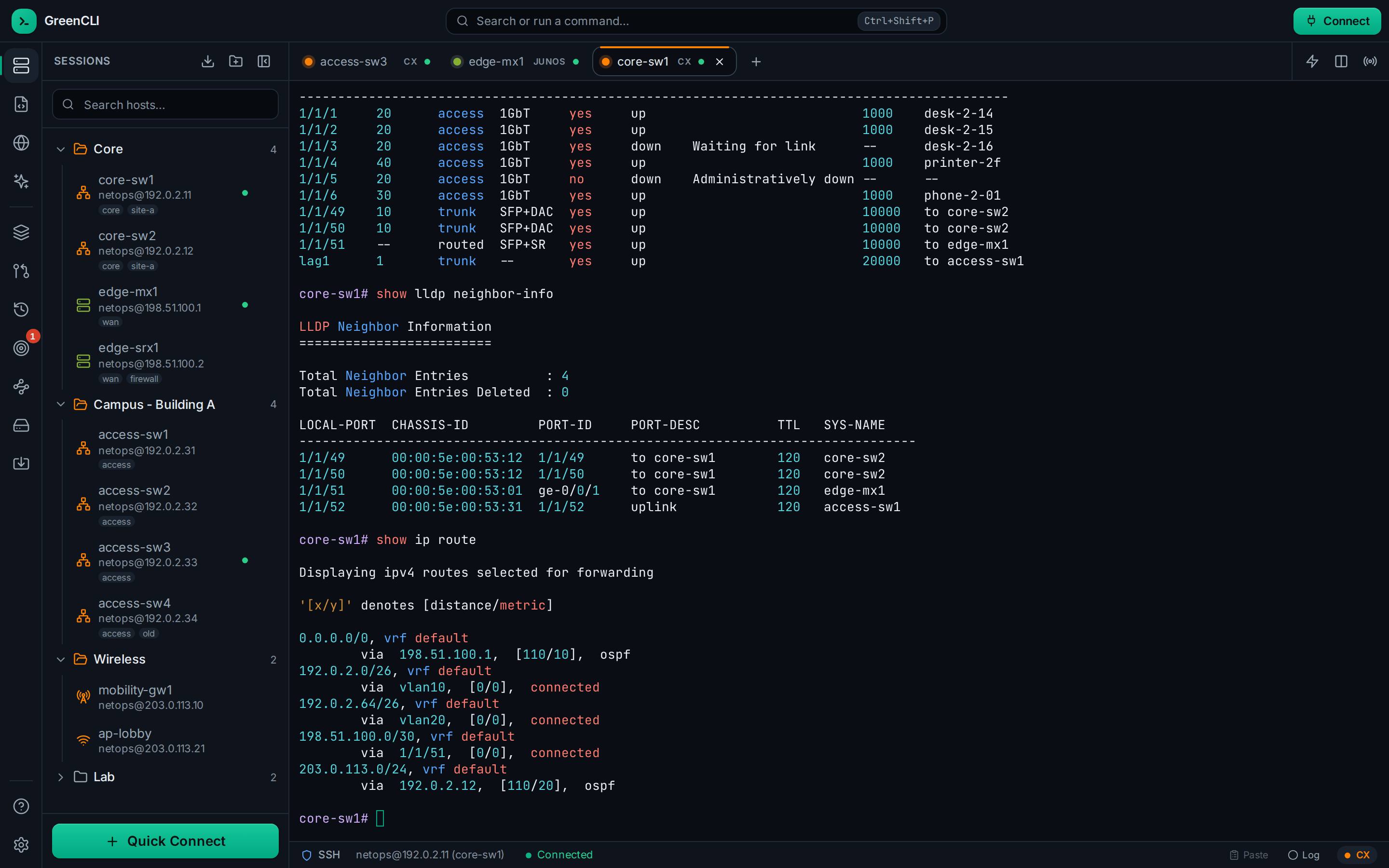 | 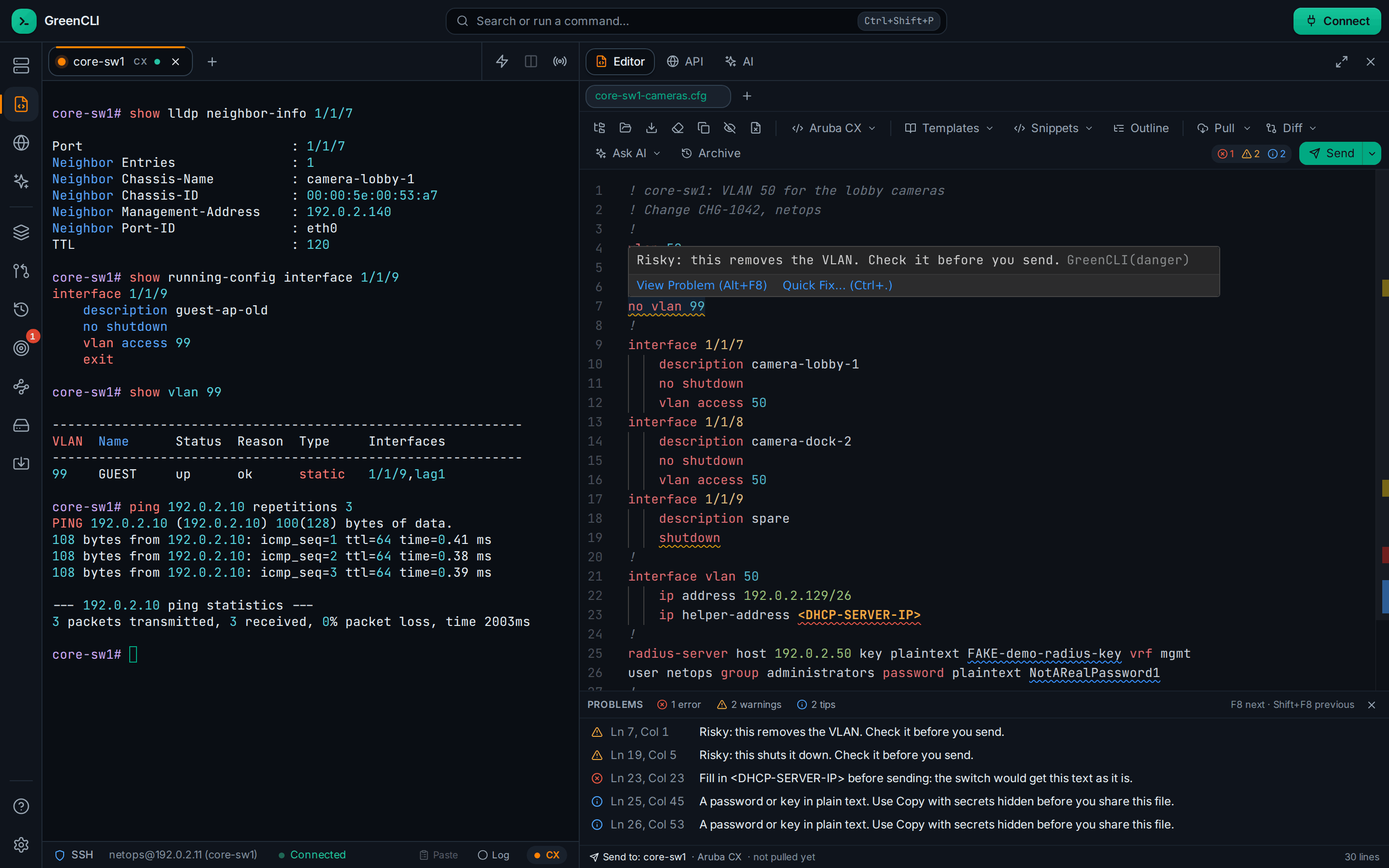 |
| AI fix as a diff | Folder view |
|---|---|
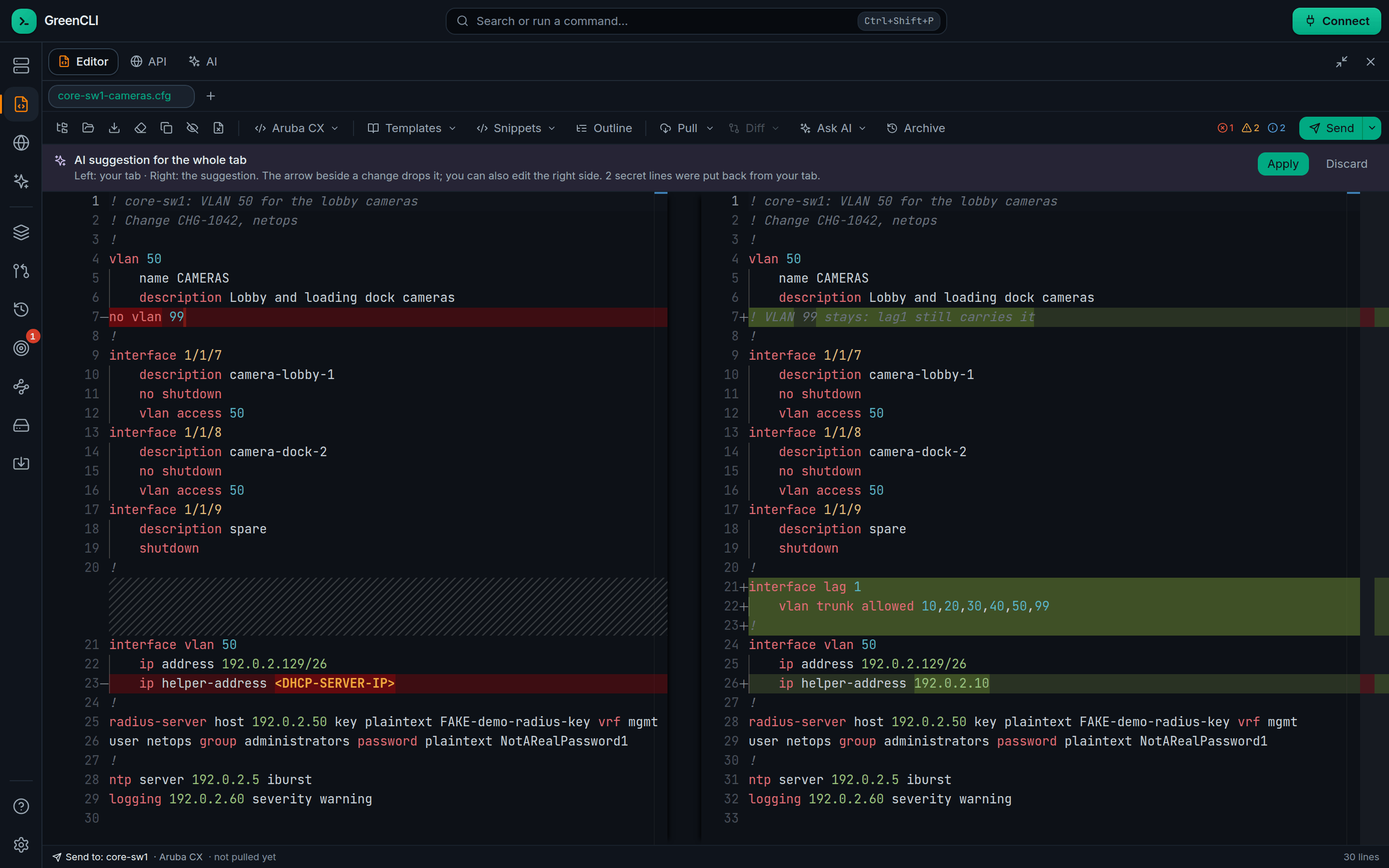 | 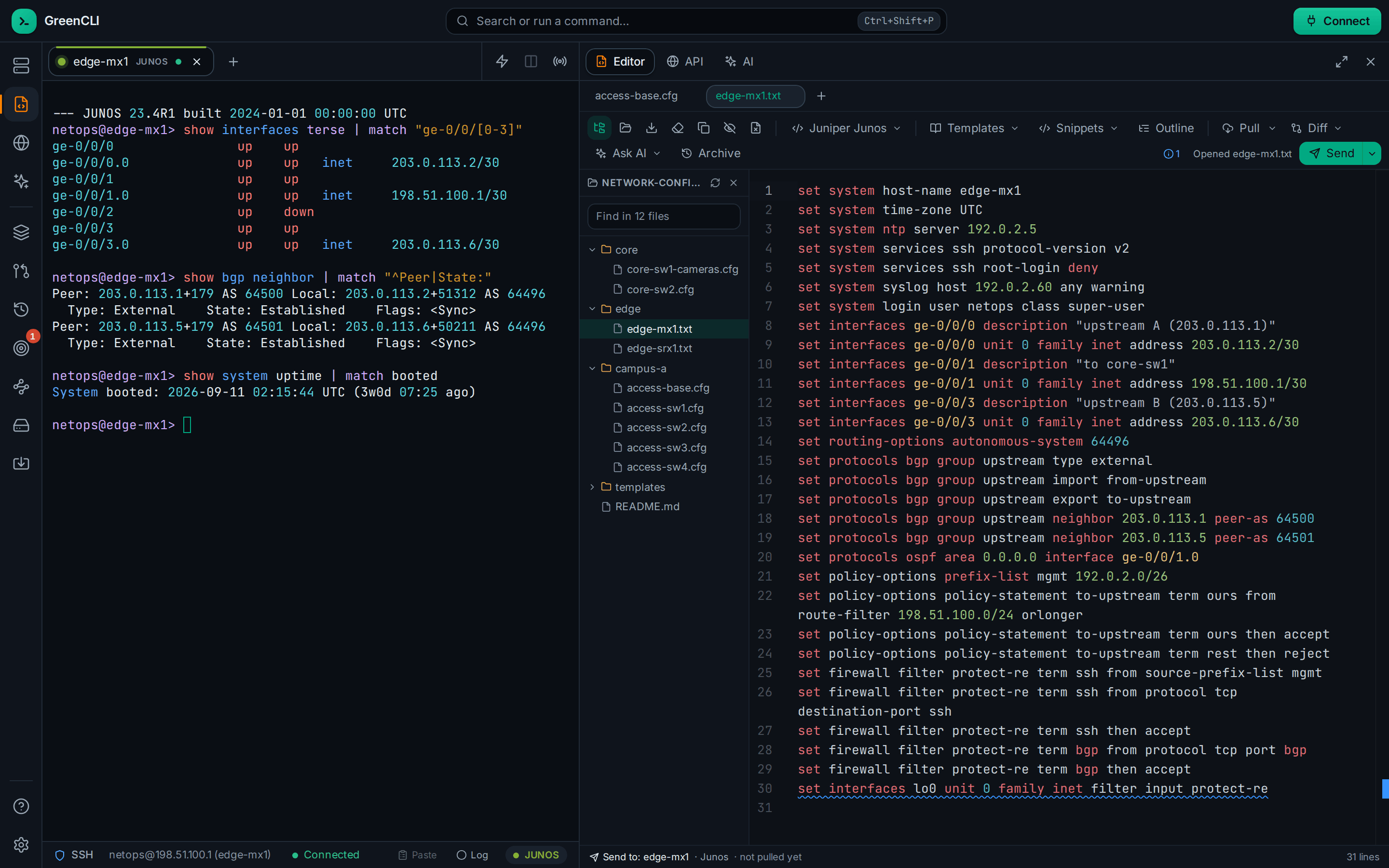 |
| AI Assistant | MCP approval box |
|---|---|
 |  |
| Settings: MCP Servers | Settings: Updates |
|---|---|
 |  |
| Change Jobs dry run | Settings: AI |
|---|---|
 |  |
| Network Intent | |
|---|---|
 |
Made from docs/SETUP.md in the GreenCLI repo.